Use a window layout to place one window. Use a workspace when you want to save and restore a group of app windows together
Workspaces are available in the full version of 1Layout, not 1Layout Lite. You need macOS 14 or later and Accessibility permission to read and move windows
A saved workspace is a window arrangement, not a backup of your documents or browser tabs. Whether those reopen depends on the app that owns them
1. Save your Mac window layout
Arrange the windows you want to save
Connect the displays you use for this setup, open your apps and documents, then position and resize their windows. Bring back minimized windows, leave full screen and unhide any apps you want included
Save the arrangement as a workspace
Open 1Layout Settings → Workspaces and choose Save Windows. If you already have saved workspaces, use the + menu to find Save Windows
Give the workspace a useful name
Open the saved workspace and rename it for the setup, such as Desk, Writing or Laptop. Check the saved windows and their display assignments before relying on the layout
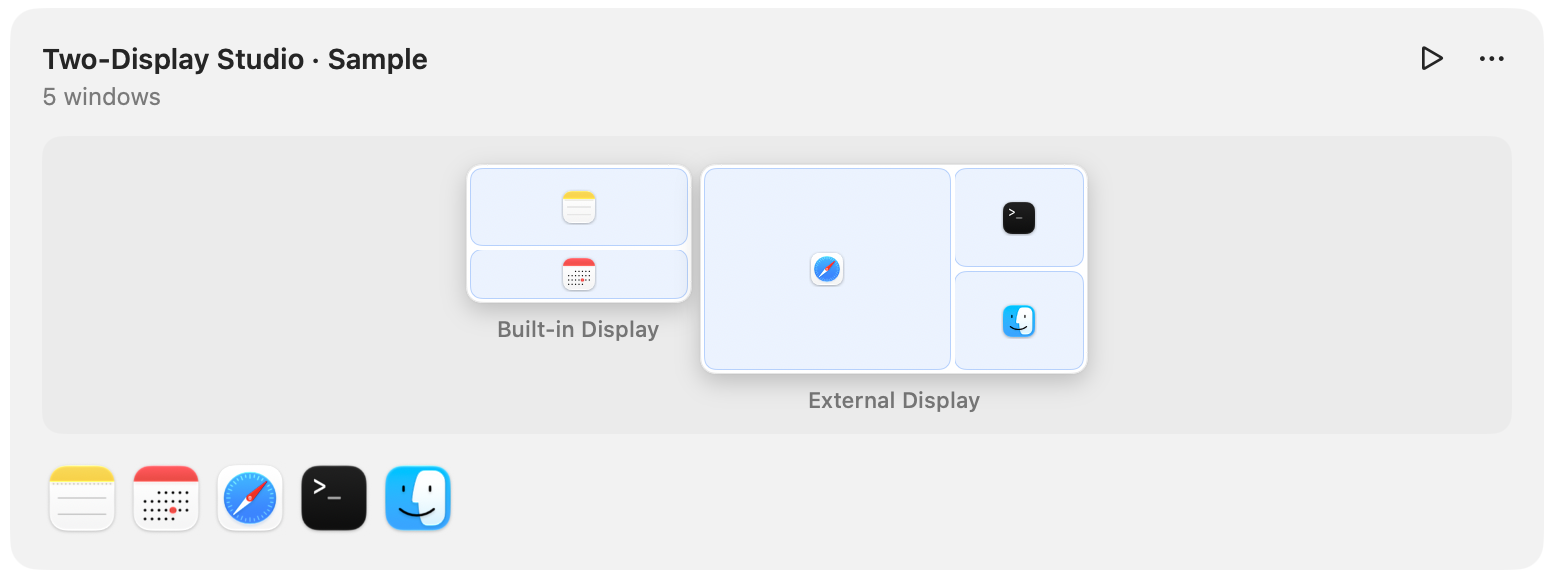
2. Restore the saved layout
Open the 1Layout menu in the macOS menu bar and choose the workspace by name. You can also open the workspace in Settings and choose Restore
For keyboard access, record a Shortcut in the workspace details. Press that shortcut from any app to restore the workspace
Try a manual restore before enabling automation: move a saved window, restore the workspace, then check its position and the restore result. Keep the original display setup connected for this first check
3. Choose when to restore automatically
Open the saved workspace and use its Restore settings. Enable the events you actually want rather than turning every switch on
4. Update the layout as your work changes
If you have rearranged the real windows and want to keep those changes, use Update Positions in the workspace. This updates the saved positions of windows that have moved
To design the saved arrangement directly, choose Edit on Screen. Move and resize window blocks, or add and remove windows. Connect at least one of the workspace’s saved displays before opening the on-screen editor
Keep separate workspaces for setups that differ, such as a laptop-only layout and a desk with an external display. Restore each one manually once before enabling its automatic triggers
If a window does not restore as expected
Still need help? Contact 1Layout support with your macOS version, display setup and the message shown in the restore result
Try it with your own windows
Download 1Layout and try the full version free for 14 days. Workspaces sit alongside layouts, gestures, shortcuts and Dock controls in one Mac app